 Kexi's blog
Getting to know OpenClaw
Learn from the OpenClaw complete tutorial by ByteGrad, and I take notes along the way in this post.
Background
OpenClaw is a viral open-source personal AI agent. It brings together the technology of agents with the data and apps you use on your machine to serve as an AI assistant. It operates a local gateway that connects AI models with your favorite tools, integrating with familiar chat apps to facilitate interactions. It can execute your desired tasks, implement proactive automation, and maintain long-term memory of user preferences. Learn more at: https://openclaw.ai
Common use cases:
- Morning brief delivered to Telegram (calendar + weather + news + priorities)
- Quiet monitoring (heartbeat checks: “alert me only if urgent email / meeting soon / site down”)
- Research assistant (search + fetch + summarize + save notes to workspace)
- Browser tasks (download invoices, fill repetitive forms with human-in-loop)
- Personal knowledge base (daily notes + curated long-term memory in Markdown)
- Multi-channel continuity (same assistant across Telegram + web UI)
Set up OpenClaw on a VPS
Use the one-click cloud deploys (e.g., https://www.hostinger.com/vps/docker/openclaw, https://marketplace.digitalocean.com/apps/openclaw, https://docs.openclaw.ai/vps) that comes with the OpenClaw app preinstalled and ready to use out of the box. Alternatively, you can set up OpenClaw yourself by accessing the VPS through the terminal and installing it manually.
# Connect to the server, create a new user,
# and grant the user sudo privileges.
ssh root@<IP>
adduser adminclaw
usermod -aG sudo adminclaw
su - adminclaw

curl -fsSL https://openclaw.ai/install.sh | bash
# 1. set model provider and default model
# 2. set channel (Telegram, WhatsApp, Feishu, etc)
# 3. set skills (keep default)
# 4. skip others for now and complete

echo 'export PATH="/home/adminclaw/.npm-global/bin:$PATH"' >> ~/.bashrc
source ~/.bashrc

openclaw -h
# check open from your computer
openclaw gateway
openclaw dashboard

ls ~/.openclaw/workspace

sudo apt update
sudo apt install -y tmux
# background session
tmux new -s claw
openclaw gateway
ctrl+b d

# chat through Telegram
# add pairing code
openclaw pairing approve telegram <code>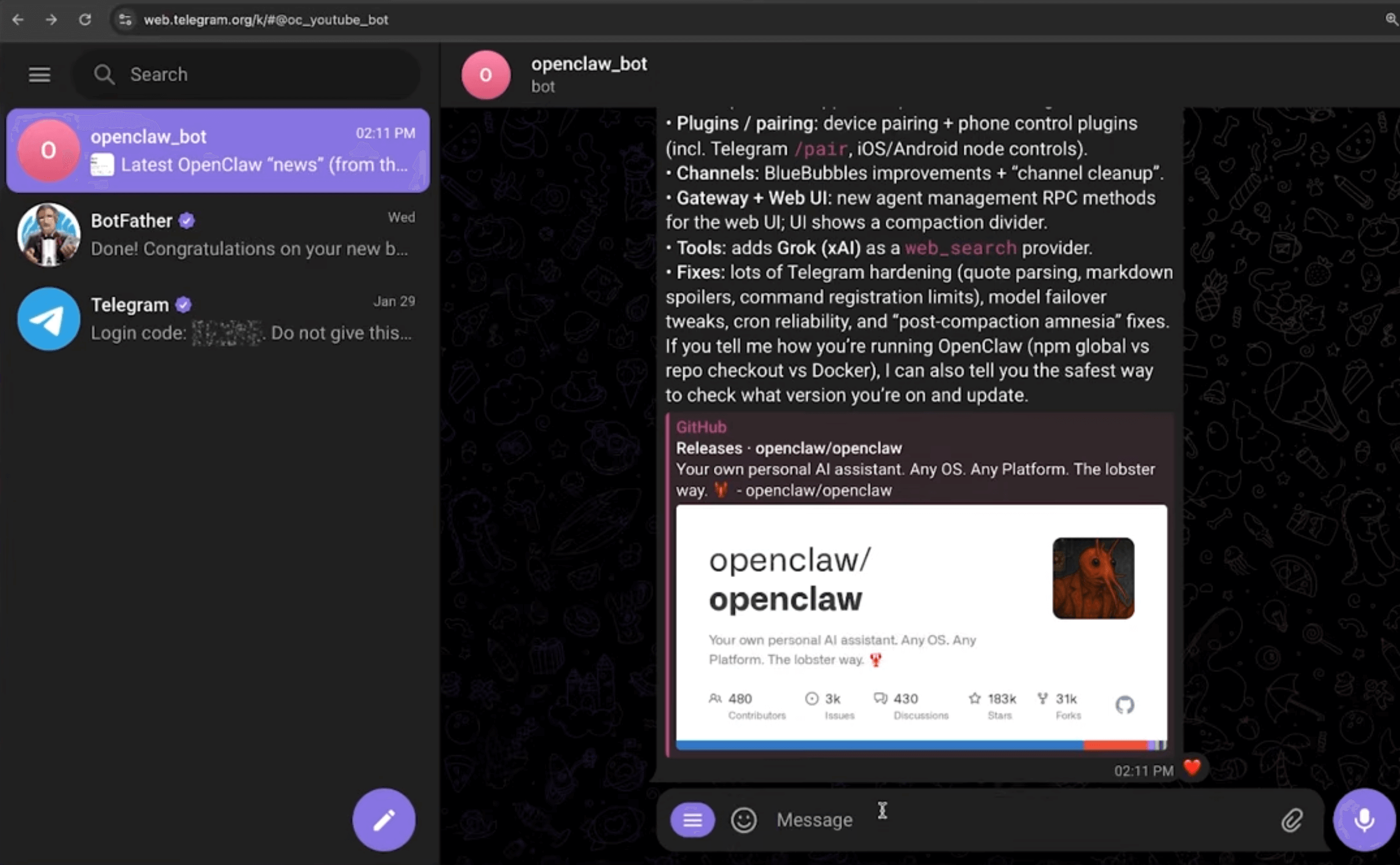
Overall structure
Telegram, WhatsApp
Control UI (dashboard, termial)
  ↑↓
Gateway
- Context: System prompt, AGENTS.md, SOUL.md, TOOLS.md
- Tools: read, edit, exec
- Skills: code review
- Folder structure: ~/.openclaw (credentials, config), ~/.openclaw/workspace (context, memory)
- Session management (keep track conversations)
- Cron / heartbeat
  ↑↓
AI model

input arrives -> session routing -> context assembly -> send to model
-> tool/skill execution (optional) -> send msg back + write memory
AGENTS.md Template: https://docs.openclaw.ai/reference/templates/AGENTS
SOUL.md Template: https://docs.openclaw.ai/reference/templates/SOUL
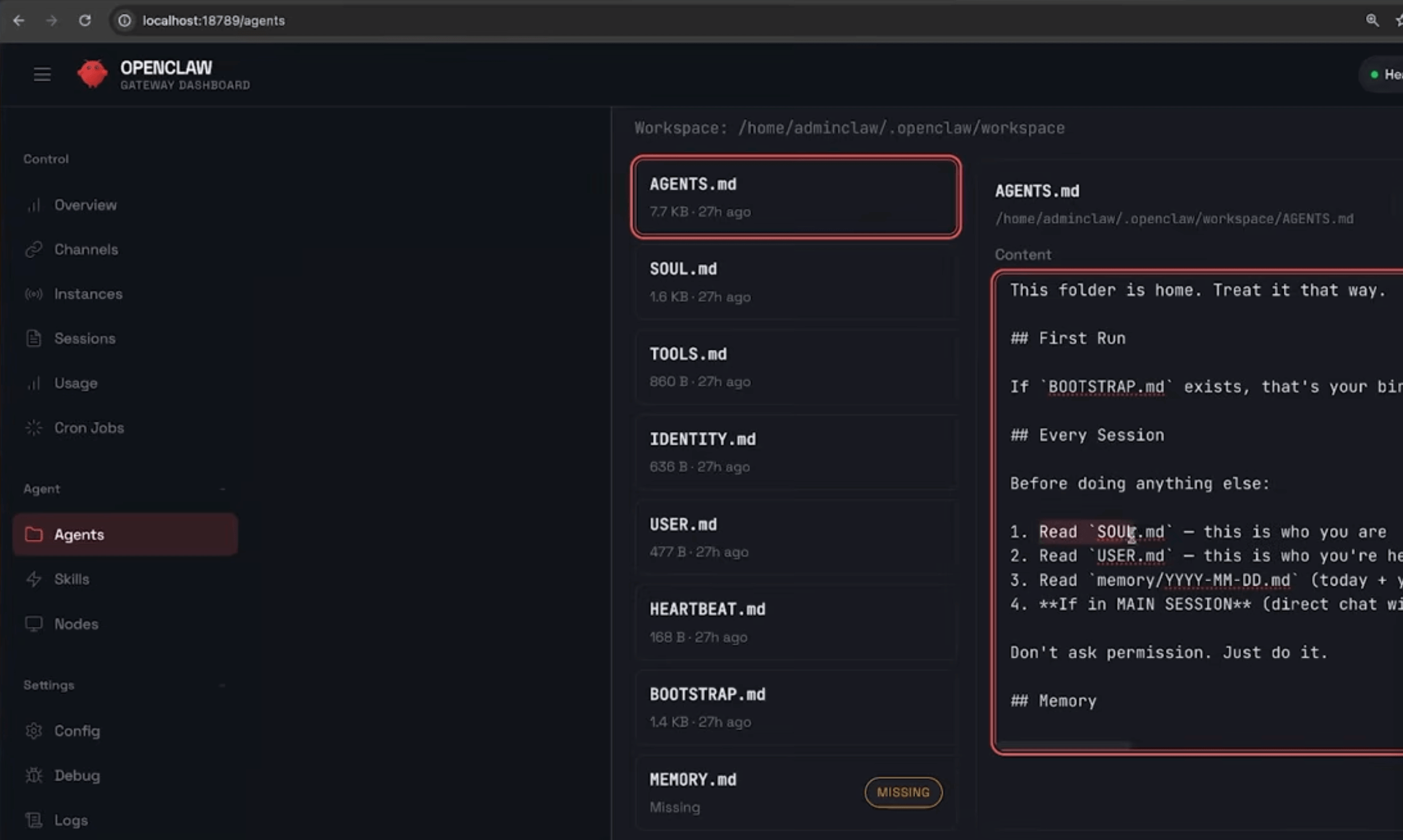
More about ~/.openclaw/workspace:
- It defines the behavior and rules. The files shape the assistant every run. You can change how it behaves without changing code.
- When the agent writes docs, scripts, notes, summaries, it writes them here. It makes OpenClaw feel like a real assistant: outputs become real files you can use.
More about context:
“Context” is everything OpenClaw sends to the model for a run. It is bounded by the model’s context window. https://docs.openclaw.ai/concepts/context
- System prompt (OpenClaw-built): rules, tools, skills list, time/runtime, and injected workspace files.
- Conversation history: your messages + the assistant’s messages for this session.
- Tool calls/results + attachments: command output, file reads, images/audio, etc.
Type /new to start a new session to inject all the system files. Type /context and /status to get an overall about current context.
Cron and Heartbeats
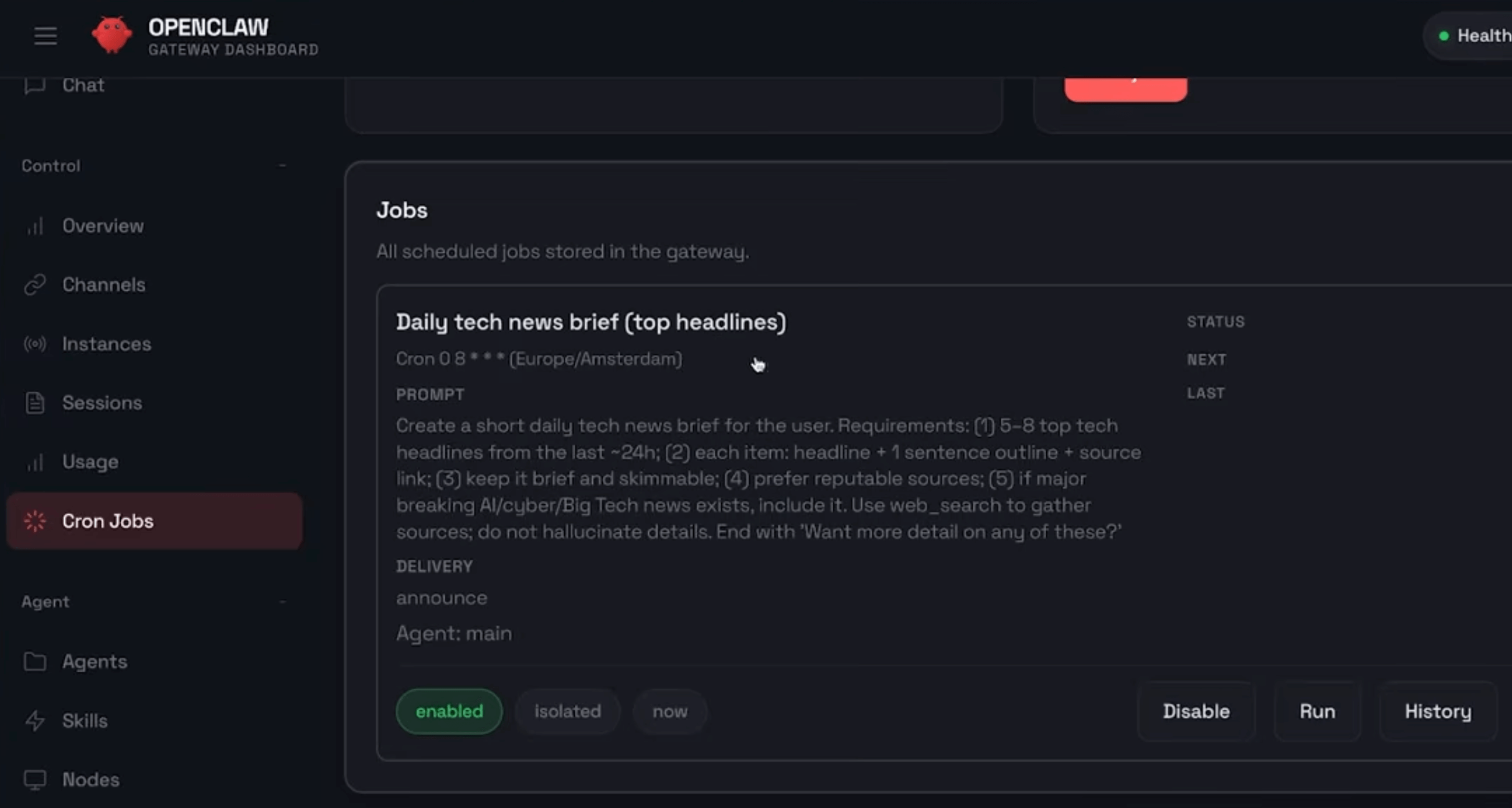
In OpenClaw, an agent turn does not always have to be triggered manually. You can also automate agent actions using Cron Jobs.
A Cron Job is a scheduled task that automatically sends a prompt to the connected AI model at a specific time. Instead of you manually writing a message, OpenClaw generates the user message based on the configured prompt and sends it to the model. The AI can then respond and potentially invoke tools. (Cron has a different session from the main one becuase you don’t need to send the full conversation history to AI for a cron job.)
A Heartbeat is similar to a cron job, but it is designed for periodic background checks rather than scheduled tasks that always produce output. https://docs.openclaw.ai/automation/cron-vs-heartbeat
Heartbeats run in the main session at a regular interval (default: 30 min). They’re designed for the agent to check on things and surface anything important. It’s ideal for quiet monitoring tasks, such as: checking for important emails, monitoring upcoming meetings, watching for system events that need attention. If an important message is found, the agent can notify you. Otherwise, it simply does nothing, meaning you are not disturbed when nothing important happens.
Heartbeat tasks are defined in a heartbeat file inside the agent configuration (~/.openclaw/workspace/HEARTBEAT.md). The default prompt tells the agent to read it. Think of it as your “heartbeat checklist”: small, stable, and safe to include every 30 minutes.
# Heartbeat checklist

- Quick scan: anything urgent in inboxes?
- If it’s daytime, do a lightweight check-in if nothing else is pending.
- If a task is blocked, write down _what is missing_ and ask Peter next time.
Skills
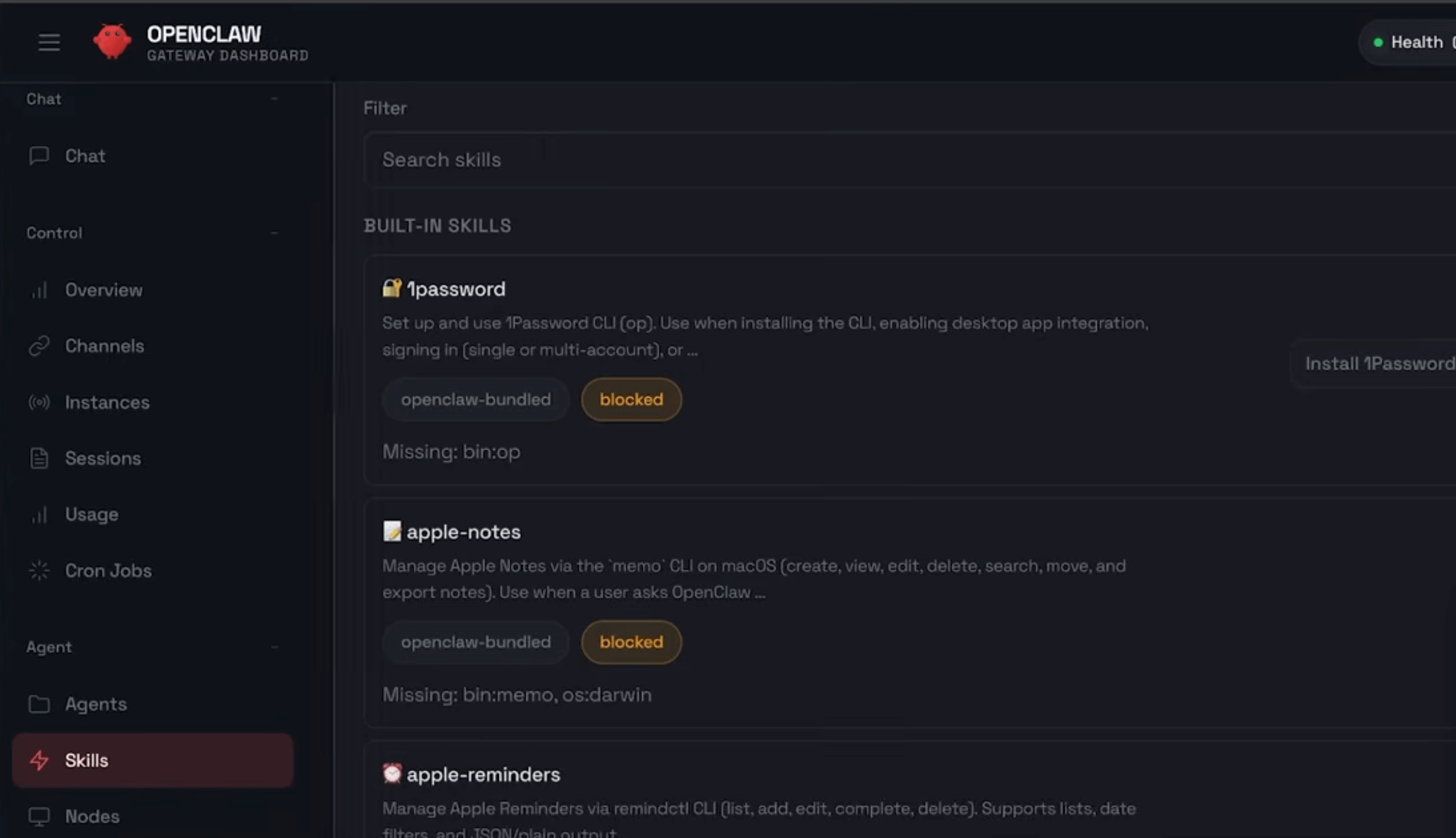
OpenClaw uses AgentSkills-compatible skill folders to teach the agent how to use tools. Each skill is a directory containing a SKILL.md with YAML frontmatter and instructions. OpenClaw loads bundled skills plus optional local overrides, and filters them at load time based on environment, config, and binary presence. https://docs.openclaw.ai/tools/skills
There are already many built-in skills.
ClawHub is the public skills registry for OpenClaw. Browse at https://clawhub.ai.
Memory
OpenClaw memory is plain Markdown in the agent workspace. The files are the source of truth; the model only “remembers” what gets written to disk.
The default workspace layout uses two memory layers:
memory/YYYY-MM-DD.md: Daily log (append-only). Read today + yesterday at session start.MEMORY.md: Curated long-term memory. Only load in the main, private session.
If someone says “remember this,” write it down (do not keep it in RAM). This area is still evolving. It helps to remind the model to store memories; it will know what to do. If you want something to stick, ask the bot to write it into memory.
MEMORY.md - Your Long-Term Memory

- ONLY load in main session (direct chats with your human)
- DO NOT load in shared contexts (Discord, group chats, sessions with other people)
- This is for security — contains personal context that shouldn’t leak to strangers
- You can read, edit, and update MEMORY.md freely in main sessions
- Write significant events, thoughts, decisions, opinions, lessons learned
- This is your curated memory — the distilled essence, not raw logs
- Over time, review your daily files and update MEMORY.md with what’s worth keeping